Integration · Finance and ERP
Business Central + Workspace.
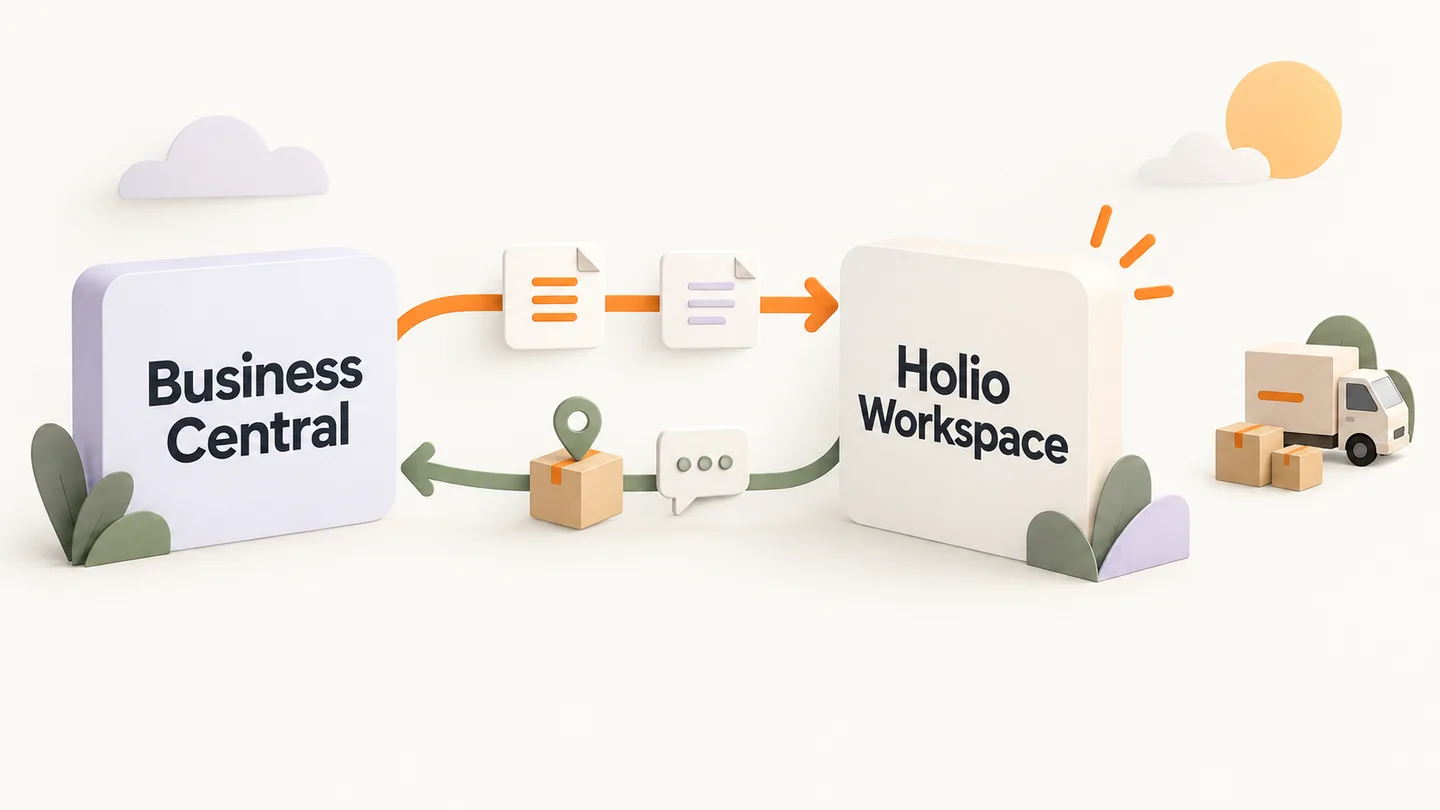
Sales orders or sales invoices from Business Central become orders in Workspace, and the tracking number is put back on the order as a comment line once the parcel has shipped.
- Direction
- Orders in, tracking number back
- Connection
- Sign in with Business Central
- Note
- Connected through Microsoft Entra ID.
- Visual
- Illustrated workflow
Into Workspace
What Workspace takes from Business Central
Sales orders
The orders to ship, with lines and recipient.
Or sales invoices
Where the invoice is the document the goods ship on, it is picked instead.
Back
What goes back to Business Central
Tracking number
Written back as a comment line on the document.
How Business Central is connected
Pick the system
Under Integrations in Workspace, with the fields Business Central needs.
Sign in with Business Central
Approve access in Business Central's own sign-in window. The keys Workspace gets back are kept in a vault, never in the database.
First sync
The history is mirrored in, and from then on a sync job of its own keeps it current. A stop shows on Sync health before it shows in the numbers.
Finance and ERP
More in the same category
Visma Business NXT
Two-way where the work happens in Workspace
Visma.net Financials
Orders in, tracking number back
Visma Payroll
In — read-only mirror
PowerOffice Go
In through the API
Tripletex
Data in and approved vouchers back
Fiken
In — read-only mirror
Fortnox
In — read-only mirror
SQL Server
In — read-only mirror
CSV and Excel
In from a file
Do you use Business Central?
We show what Business Central looks like in Workspace, in a demo with your own setup.